Earthdata Forum is down due to unplanned maintenance. Please contact earthdata-support@nasa.gov with questions.
See the alert
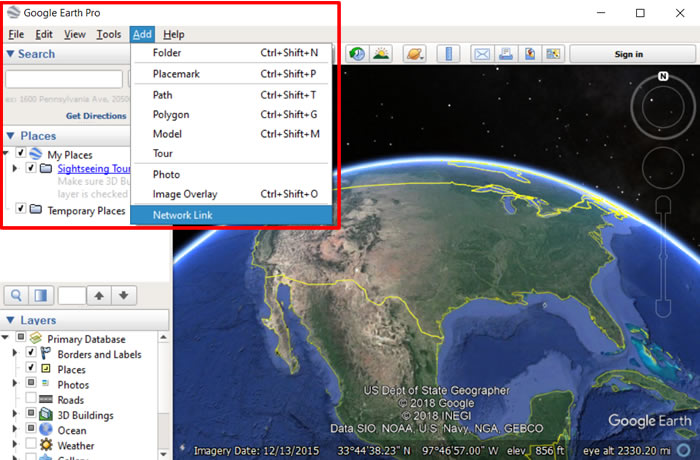
Step 1 - Add Network Link
- Launch Google Earth Pro on your computer (not the google earth web site)
- Click Add > Network Link
Image
Step 2 - Set URL and Refresh Rate
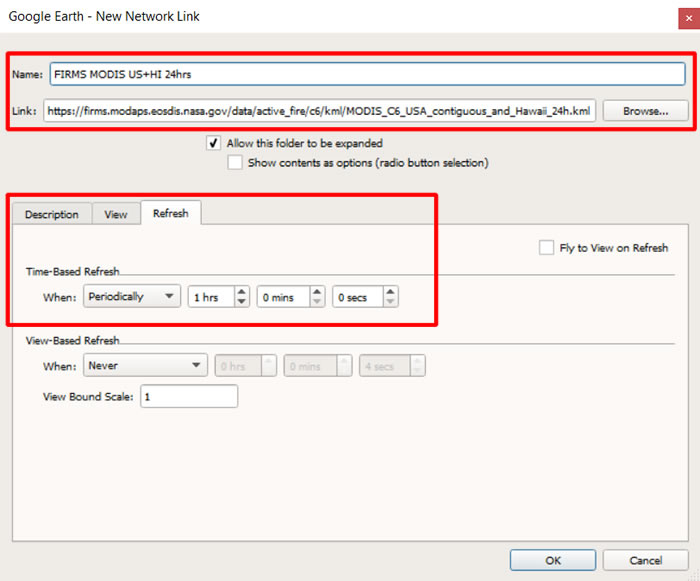
- Paste and copy url location into Link:
ex:https://firms.modaps.eosdis.nasa.gov/data/active_fire/modis-c6.1/kml/MODIS_C6_1_USA_contiguous_and_Hawaii_24h.kml - View other available FIRMS kml files (updated every hour)
- Select Refresh tab
- Set Time-Based Refresh to When:Periodically
- Adjust the frequency as needed
- Click OK at the bottom
Image
Step 3 - View Data
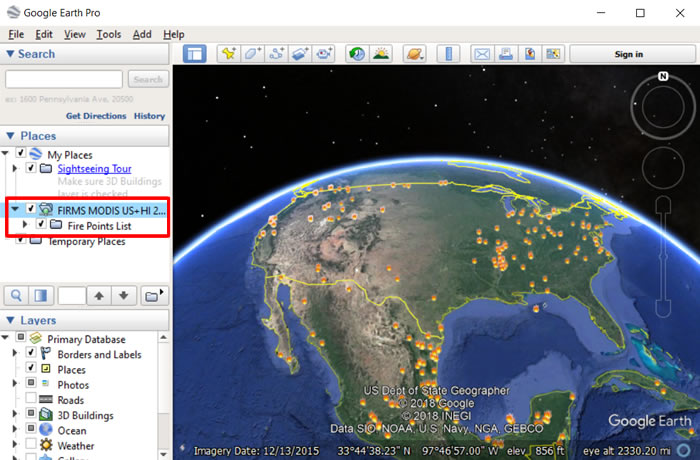
- Double+Click the FIRMS layer for refresh or Right+Click and select Refresh to view the data
- The link name will be added to the Temporary Places section of your Places panel
- The specified kml file will be refreshed with the defined time interval
Image
Method 2:
Step 1 - Create local.kml file with the Network Link
- Open any text editor and paste and copy the code below
- Note the refreshInterval is set to 3600 seconds (3600 seconds = 1 hour; 43200 seconds = 12 hours; 86400 seconds = 1 day)
- Set href to FIRMS kml file of your interest. See options (updated every hour)
- Save the file as local.kml in plain text. Check that the editor didn't add any special characters.
<?xml version="1.0" encoding="UTF-8"?>
<kml xmlns="http://earth.google.com/kml/2.0">
<Document>
<NetworkLink>
<Name>Local kml</Name>
<Link>
<href>https://firms.modaps.eosdis.nasa.gov/data/active_fire/c6/kml/MODIS_C6_USA_contiguous_and_Hawaii_24h.kml</href>
<refreshMode>onInterval</refreshMode>
<refreshInterval>3600</refreshInterval>
</Link>
</NetworkLink>
</Document>
</kml>
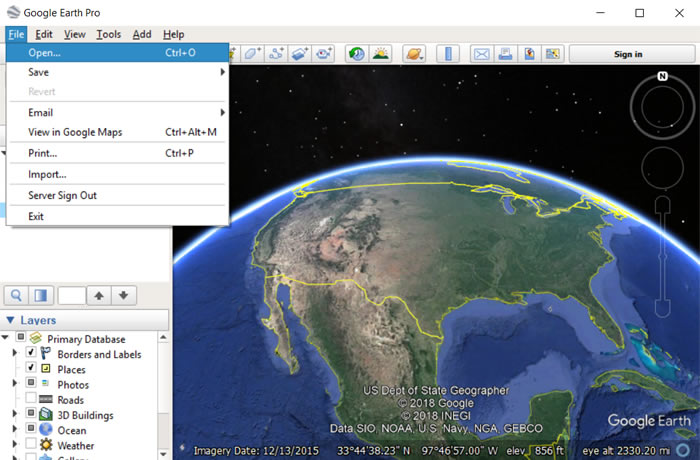
Step 2 - Open local.kml File in Google Earth Pro
- Launch Google Earth Pro on your computer (not the google earth web site)
- Click File > Open
Image
Step 3 - Find local.kml File
- Find and select local.kml and click Open
Image
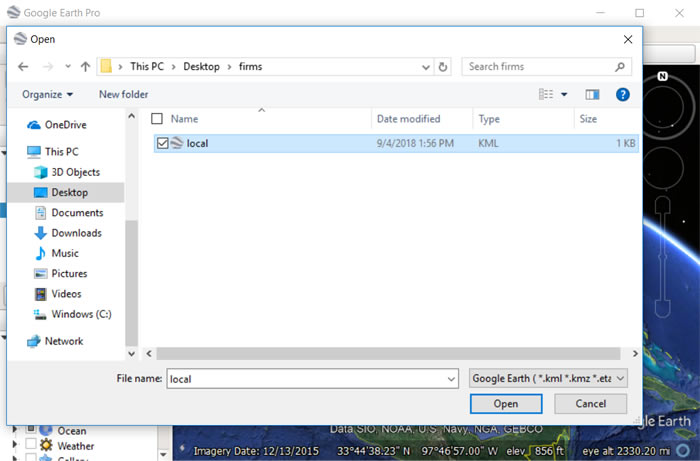
Step 4 - View Results
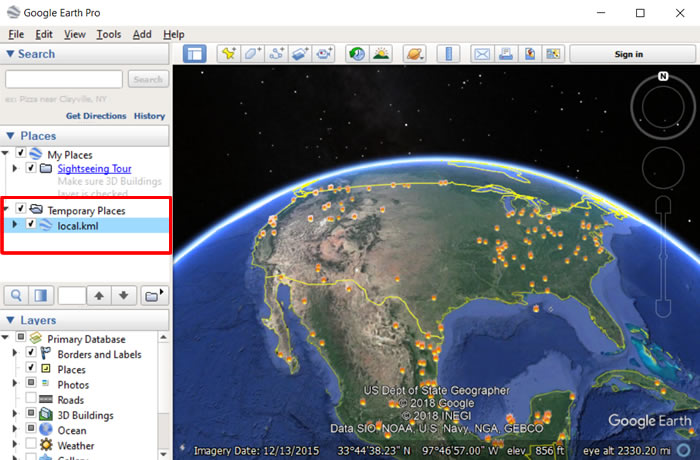
- The file is added to the Temporary Places section of your Places panel.
- It will auto refresh as defined in your local.kml file
Image
Details
Last Updated
Published
Aug. 23, 2019