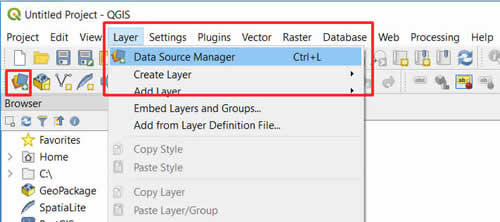
Step 1 - Open Data Source Manager

  • Launch QGIS
  • Open 'Layer -> Data Source Manager'
  • or use the shortcut icon in the toolbar
Image

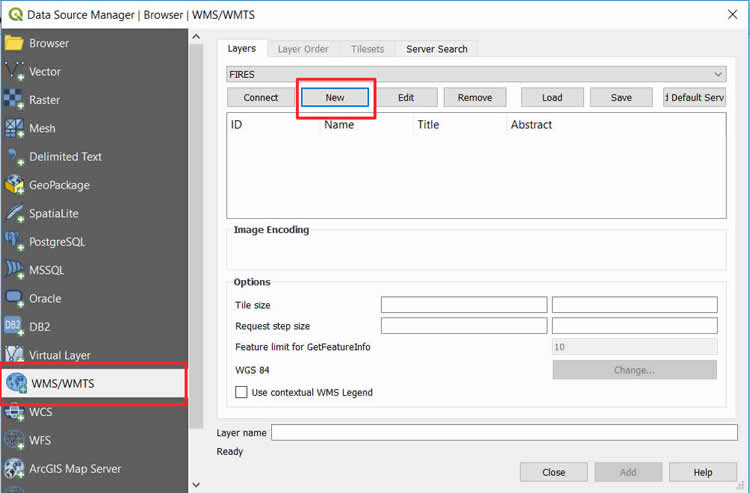
Step 2 - Create New Connection

  • On the left side select 'WMS/WMTS'
  • Click on 'New' to create new connection
Image

Step 3 - Specify Connection Parameters

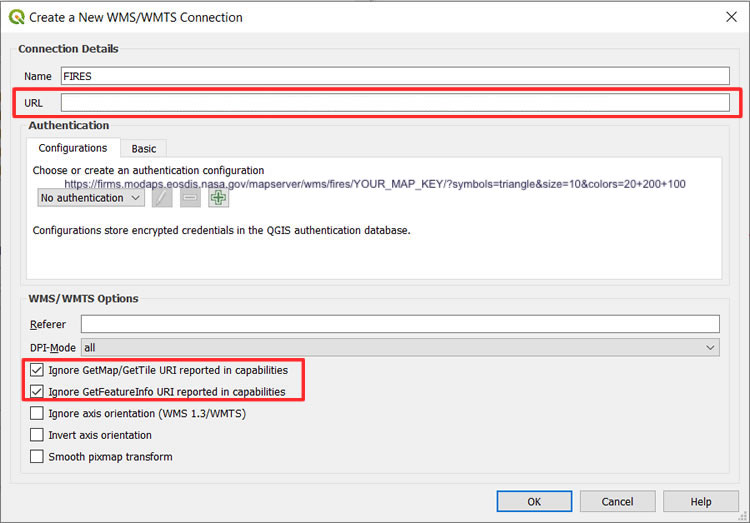
For server URL set https://firms.modaps.eosdis.nasa.gov/mapserver/wms/[LAYER_TYPE]/<YOUR_M… where ‘YOUR_MAP_KEY’ is the unique code containing both letters and numbers
* Request a Map Key here: https://firms.modaps.eosdis.nasa.gov/mapserver/wms-info/#firms-mapkey
Image

Step 4 - Select FIRMS Layer

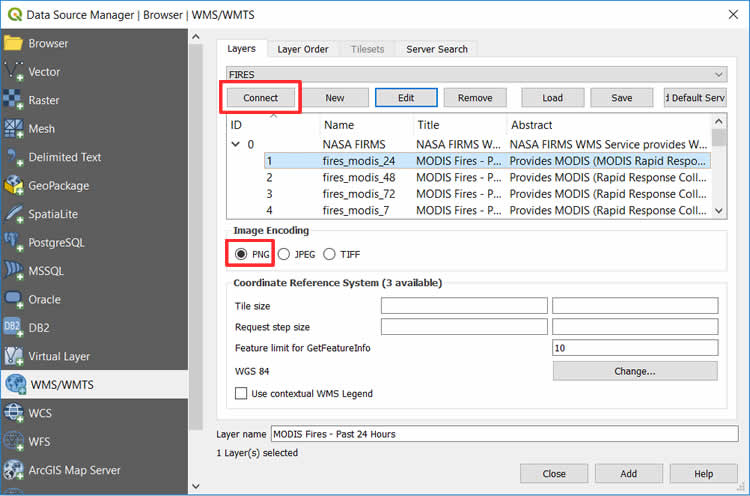
  • Click on 'Connect' to get the list of available FIRMS layers
  • Choose layer of your interest
  • Use PNG for transparent imagery
Image

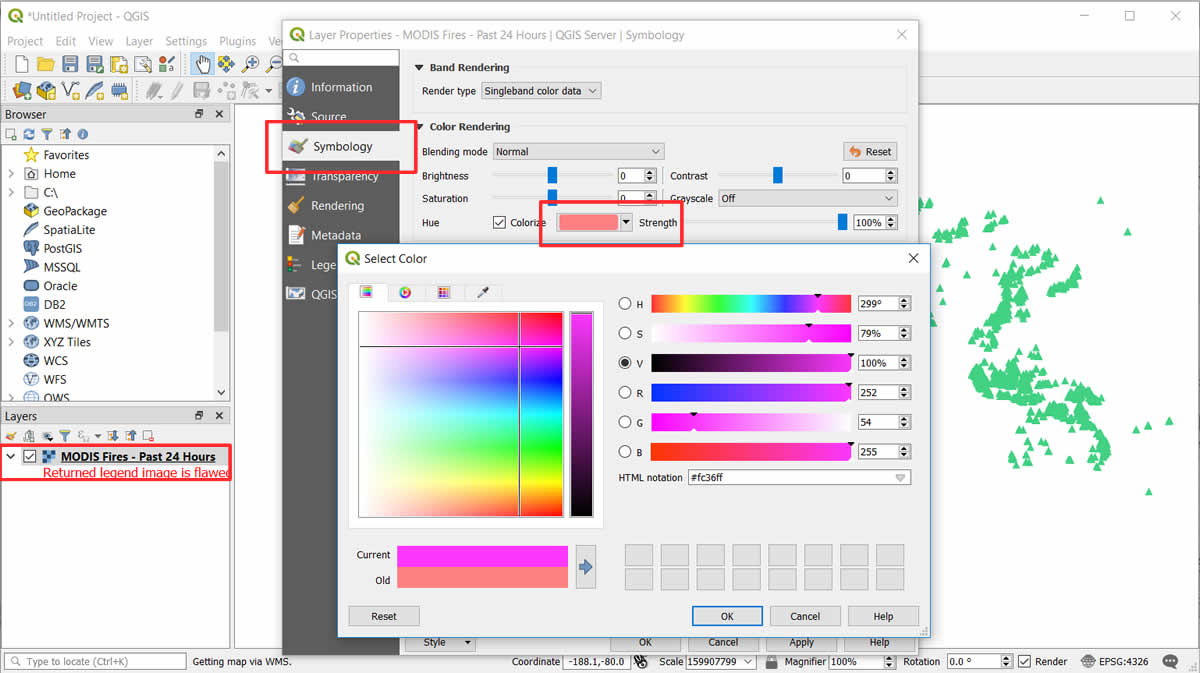
Step 5 - Customize Color

  • Open Layer Properties
  • Set 'Symbology' option
  • Click on 'Colorize' options which will open color picker menu
  • Choose your color and click 'OK'
Image

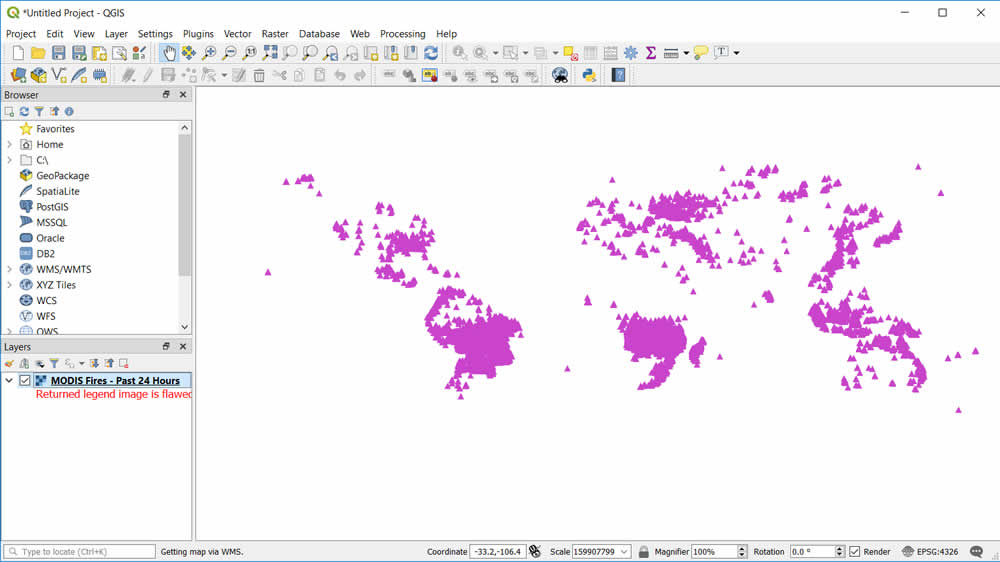
Step 6 - View Results

  • The map will display custom symbology
Image

Details

Last Updated

May 14, 2026

Published

Nov. 12, 2019