Add a Web Service to QGIS
- Under Layer/Add Layer, select "Add W*S Layer" (*denoting the type of service you plan to connect to).
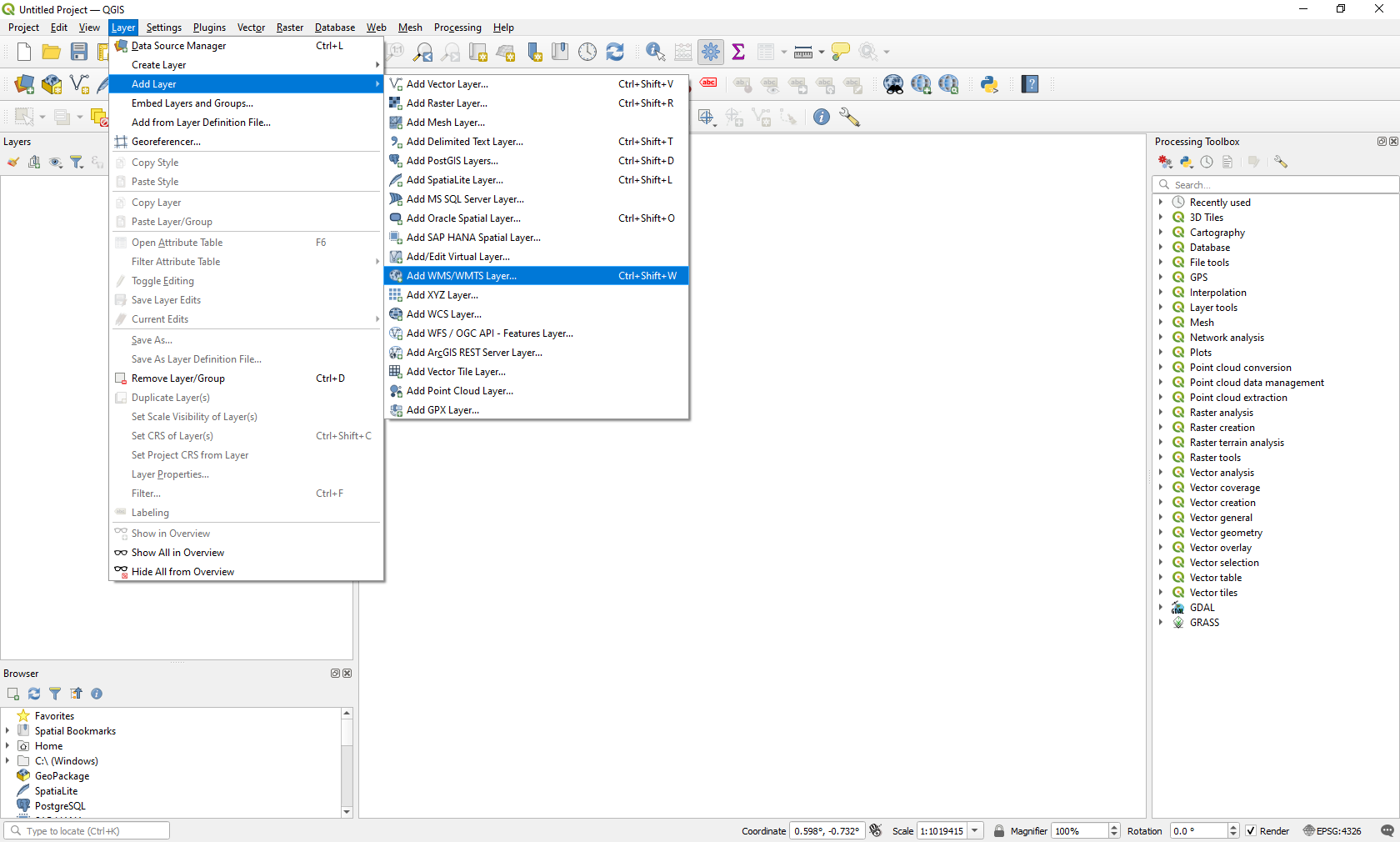
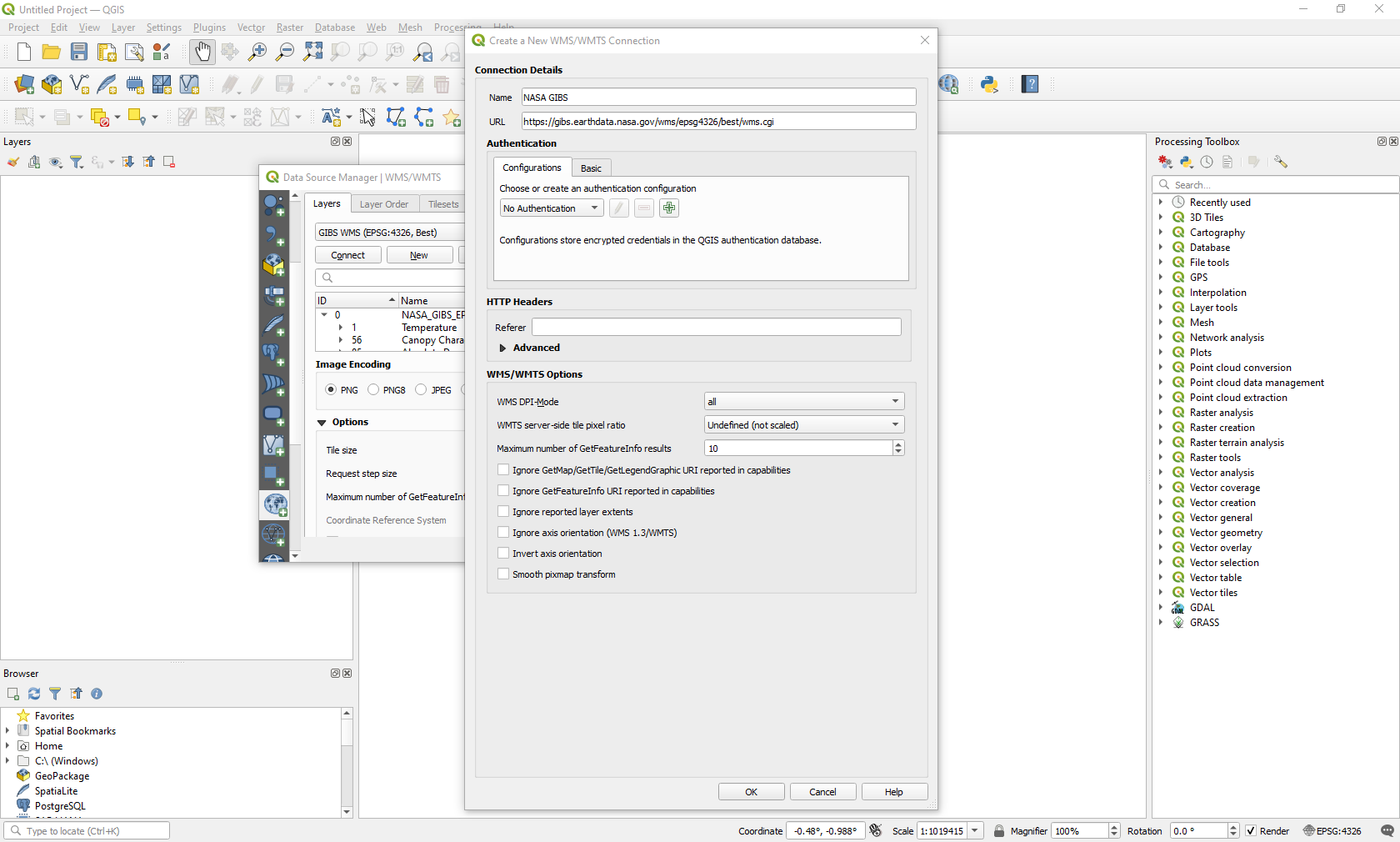
2. Click "New" to add a new endpoint. Add a "Name" such as "GIBS WMS (EPSG:4326, Best)". Then, add a "URL". For example, you can use one of the following NASA Global Imagery Browse Service (GIBS) URLs:
3. Click “OK” in the pop-up window, then "Connect" in the “Data Source Manager” window to access the services available.
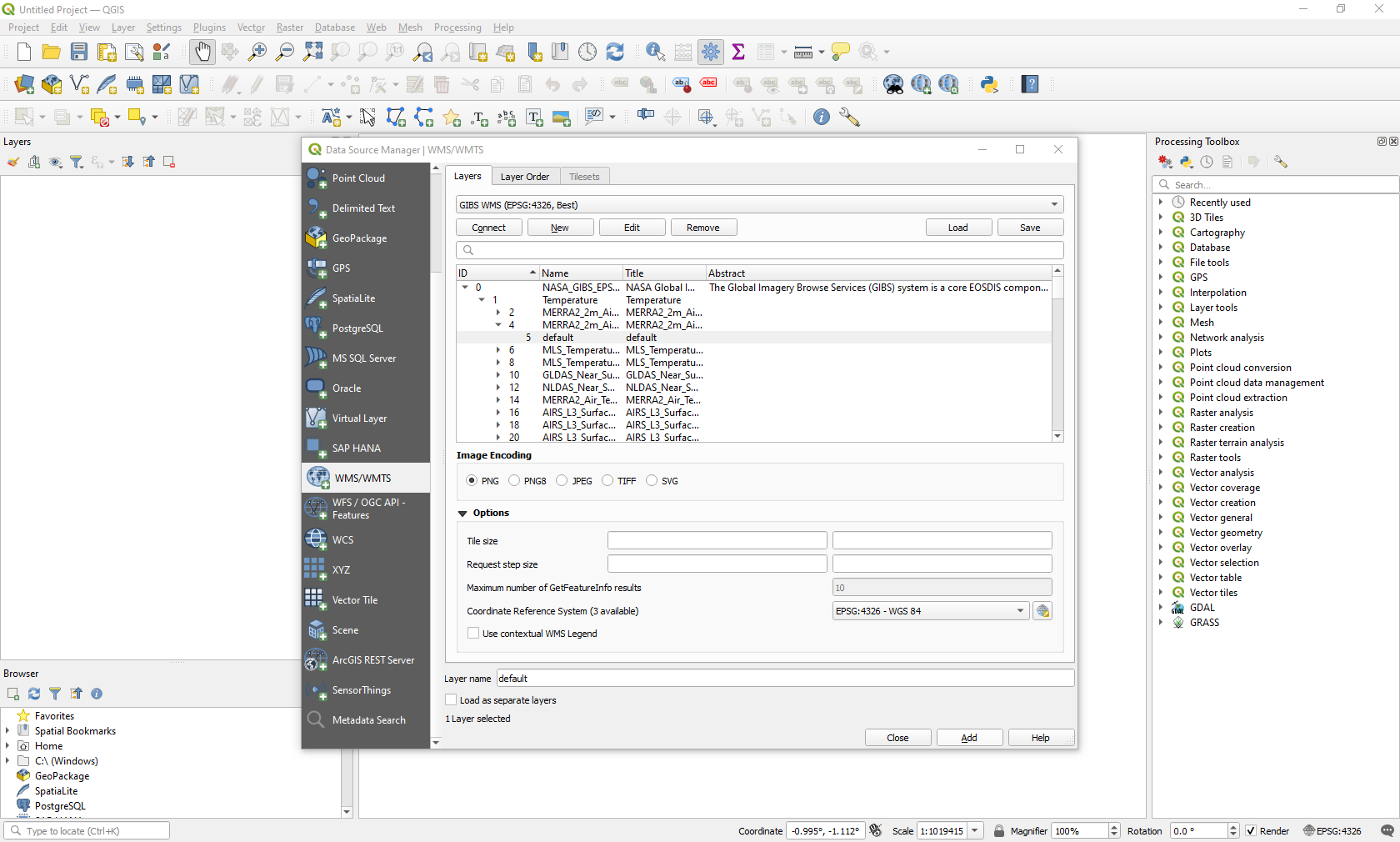
4. Choose the content you desire to view and click “Add” for the service to be brought into your map viewer.
5. Now you can visualize the imagery as well as control the temporal range available for the data collection. For more information on using GIBS layers in QGIS, check out this webpage: Accessing GIBS via GIS Applications
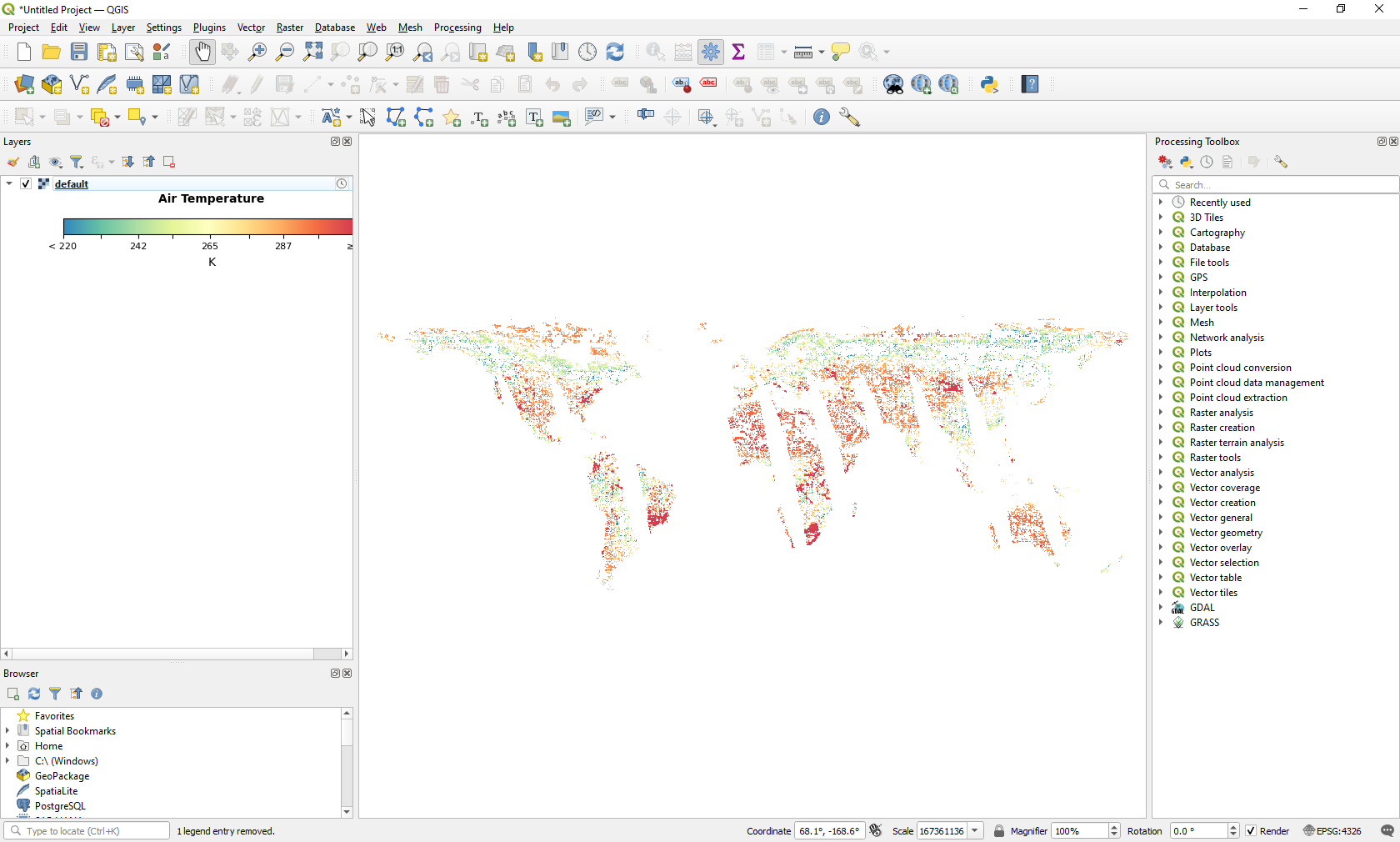
Image services can be easily added into open-source tools such as QGIS. While there are many plugins available, not all are maintained or frequently updated. Therefore, we will only showcase what is included out-of-the-box via the Data Source Manager interface.
Below is a demonstration shown using QGIS 3.40.3.
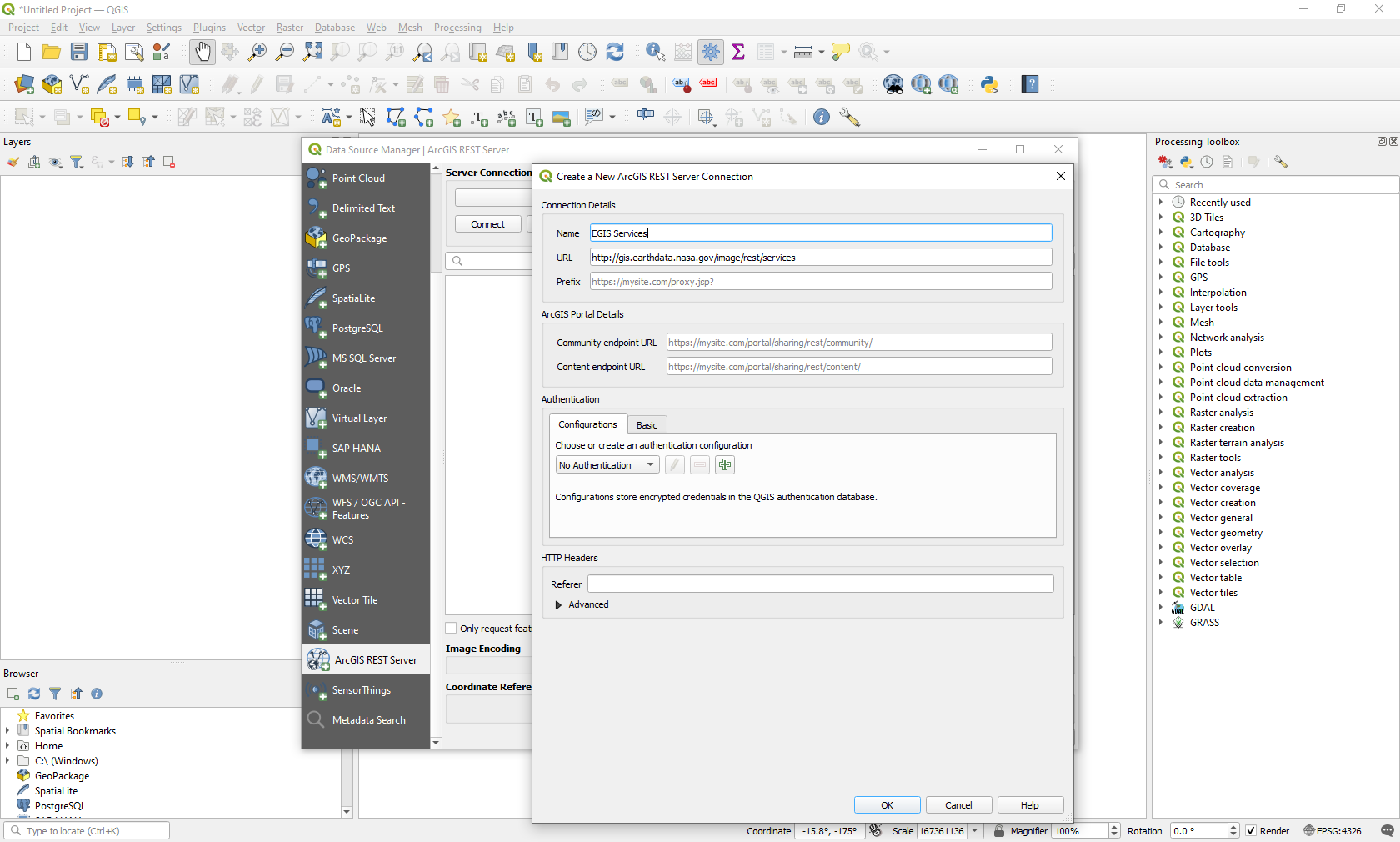
3. Click “Connect” to view the catalog available image services.
4. Navigate to the content item you wish to visualize and click “Add”. Note: As seen in the screenshot, individual services have individual URLs. If you know the specific URL for the service you are interested in, you can follow the above steps, but with the specific URL.
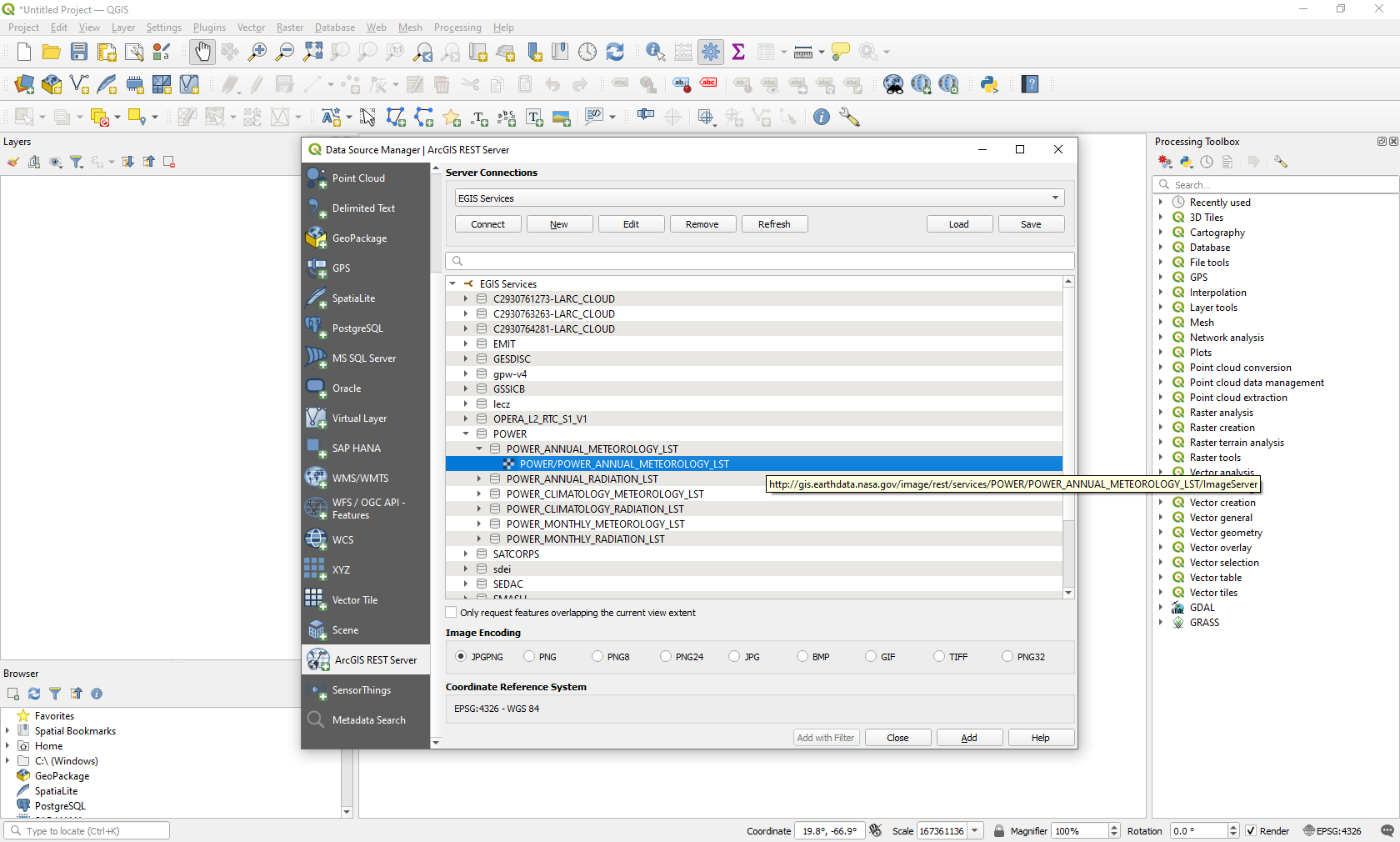
5. Now you can visualize the imagery.
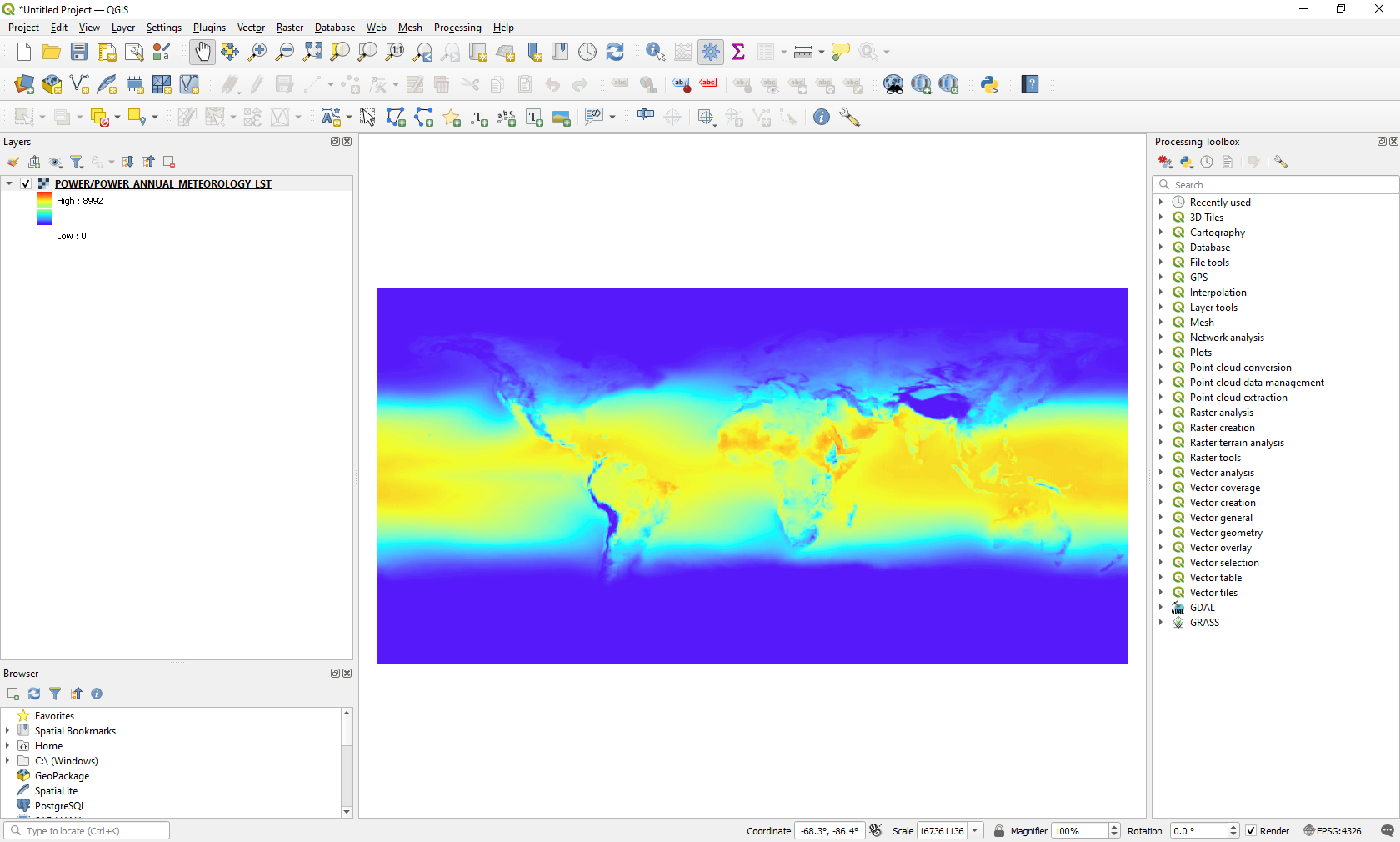
Image services being deployed in the enterprise Earthdata GIS will have Open Geospatial Consortium (OGC) service endpoints, specifically Web Mapping Services (WMS) and/or Web Coverage Services (WCS).
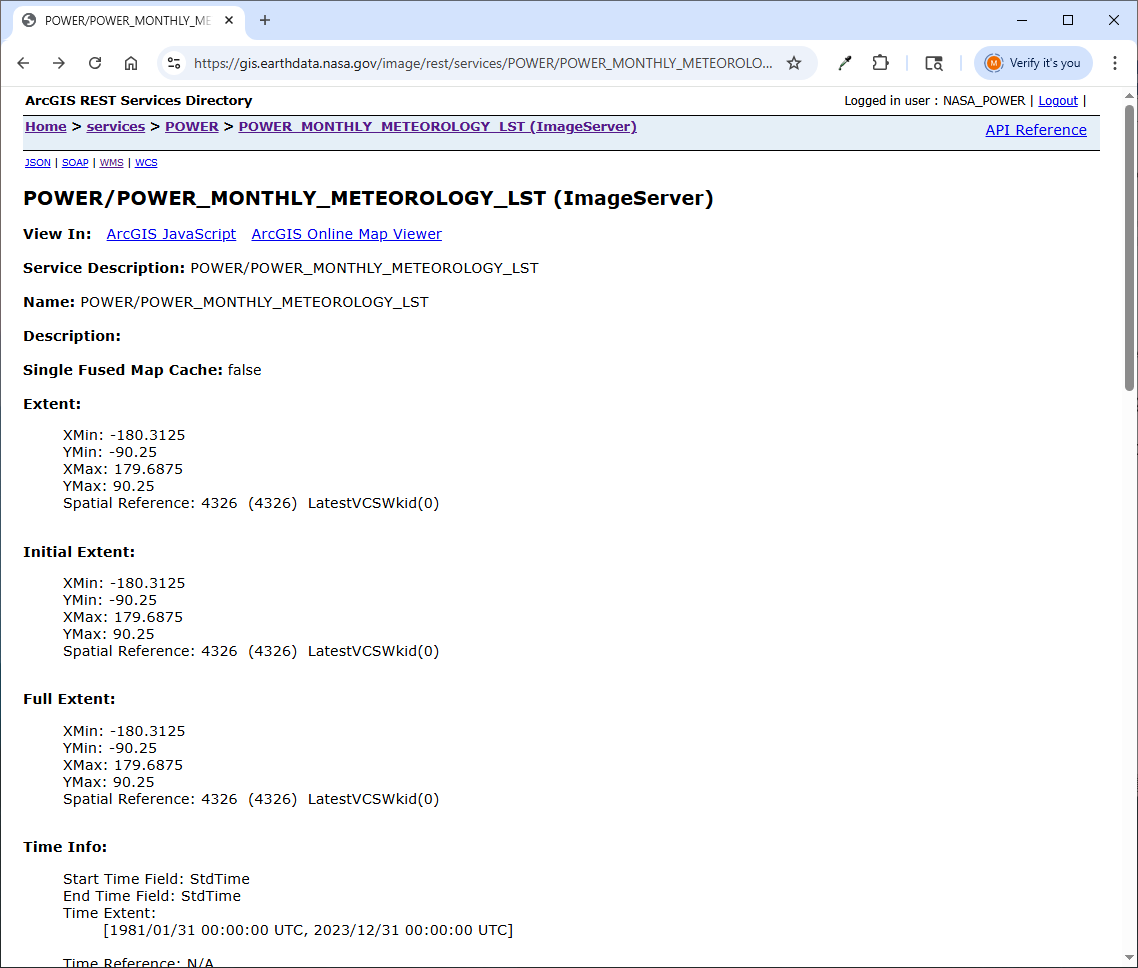
3. Below is an example of the POWER Monthly Meteorology layer, which has the URL of “https://gis.earthdata.nasa.gov:443/image/services/POWER/POWER_MONTHLY_M…”
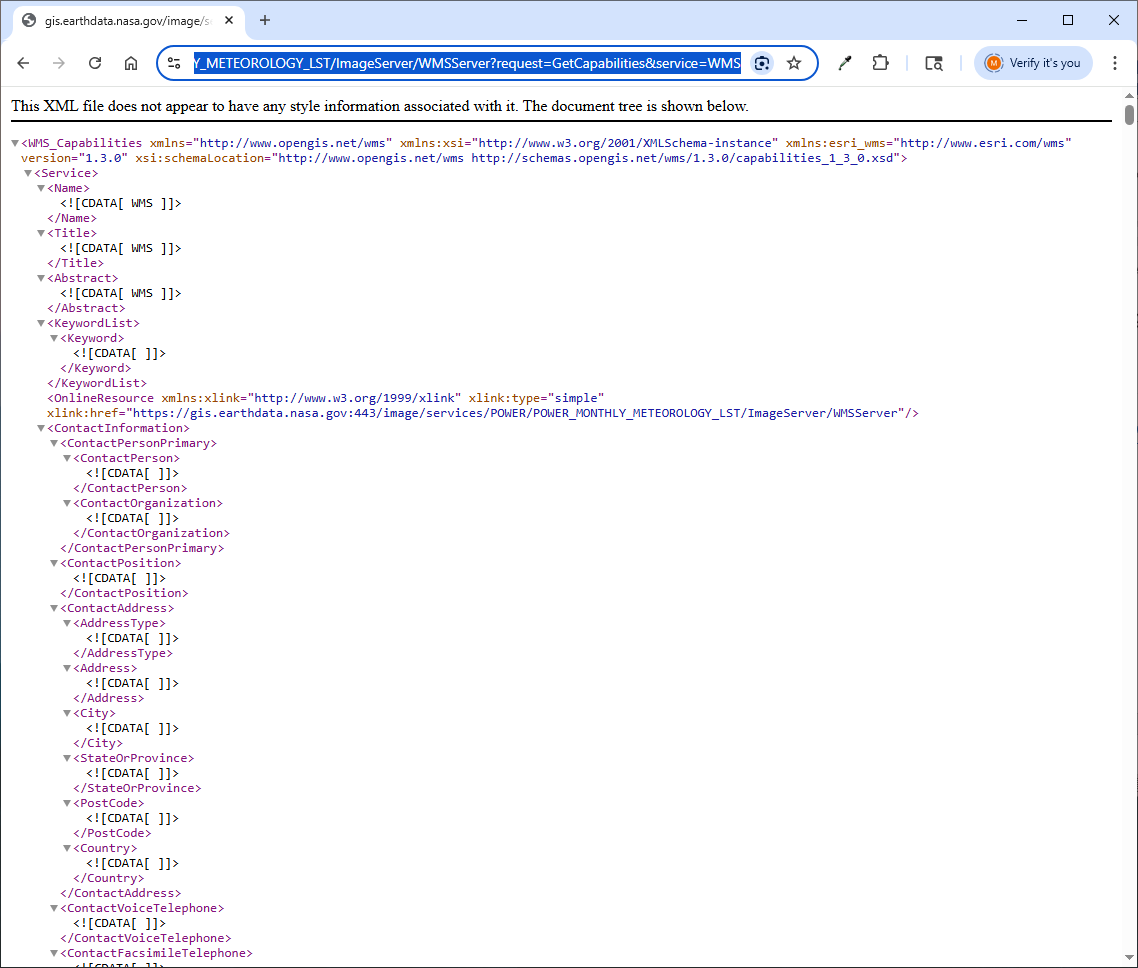
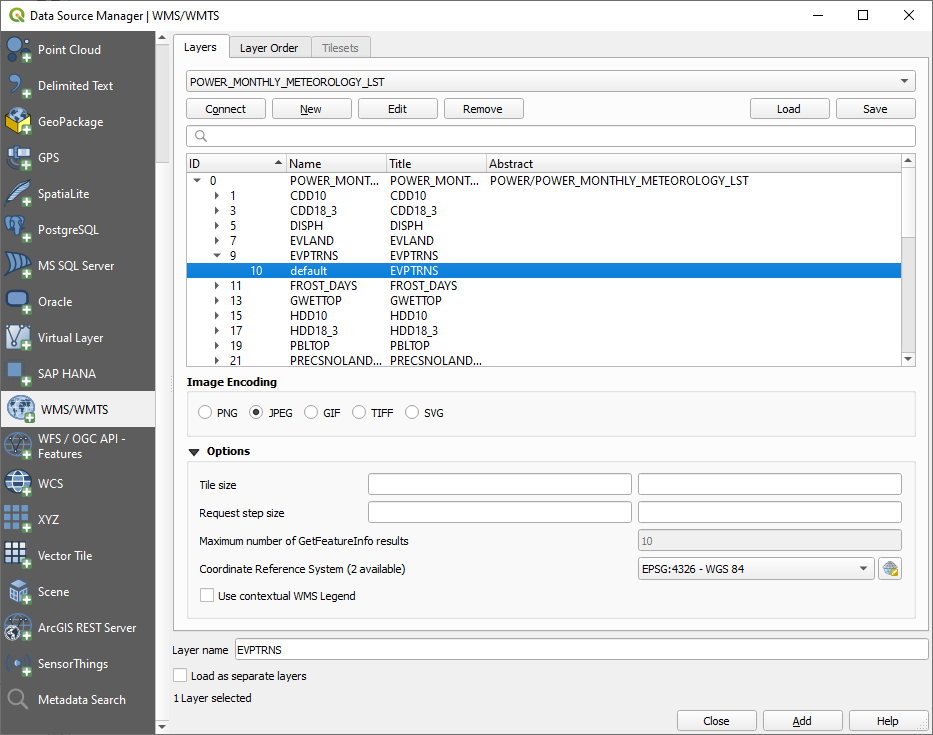
4. Once connected to the WMS layer, users can select the underlying layer to load it into QGIS. For this specific image service, the Image Encoding should be set to JPEG for maximum functionality. In experimenting with other WMS layers, it is recommended to test various encodings if the initial import is unsuccessful or unsatisfactory.
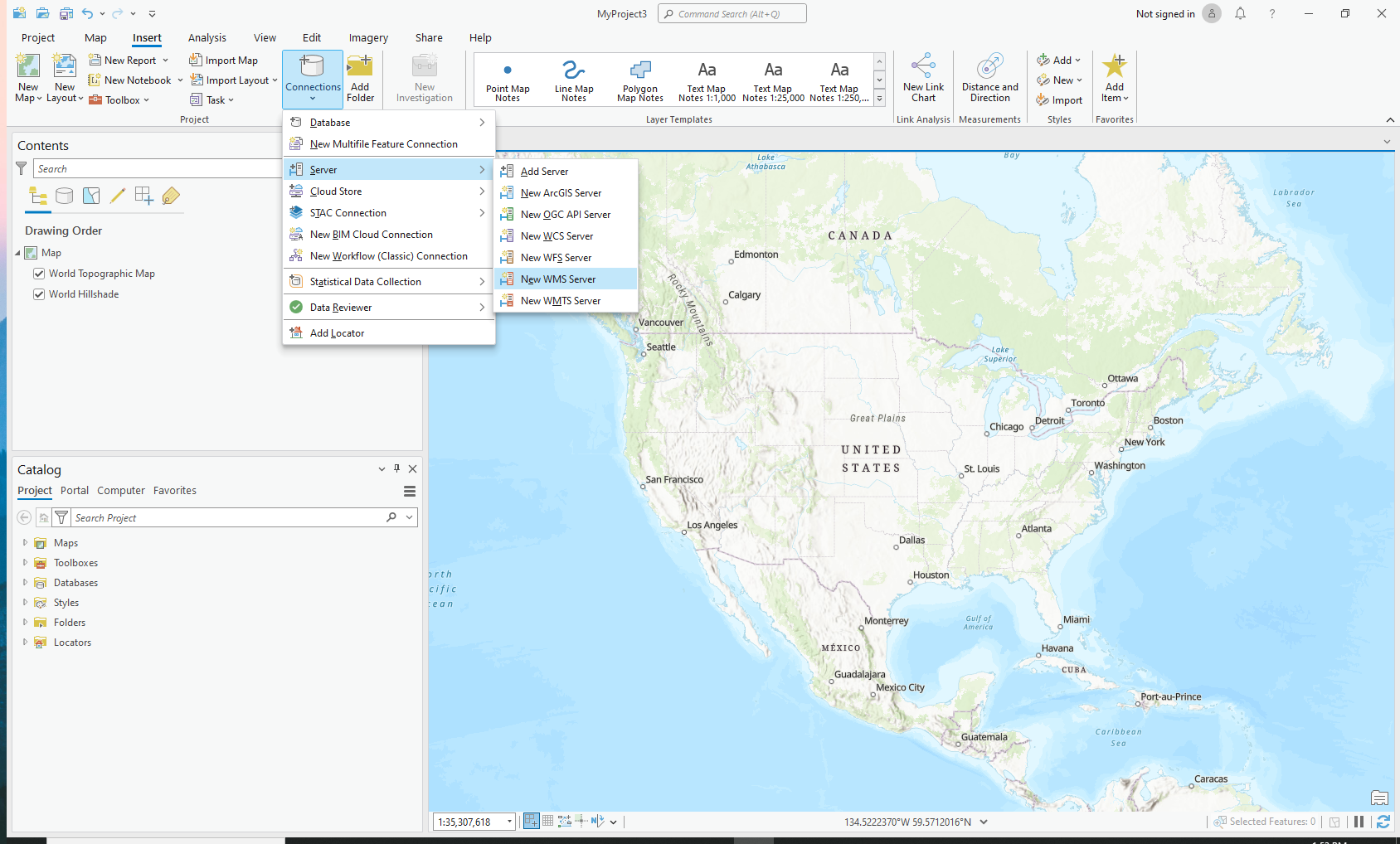
2. Add a new endpoint using the specific URL. For example, you can use one of the following NASA Global Imagery Browse Service (GIBS) URLs:
3. Click "OK" to connect and access the services available.
4. Under “View”, click “Catalog Pane” to find the Servers folder to locate the service you connected to.
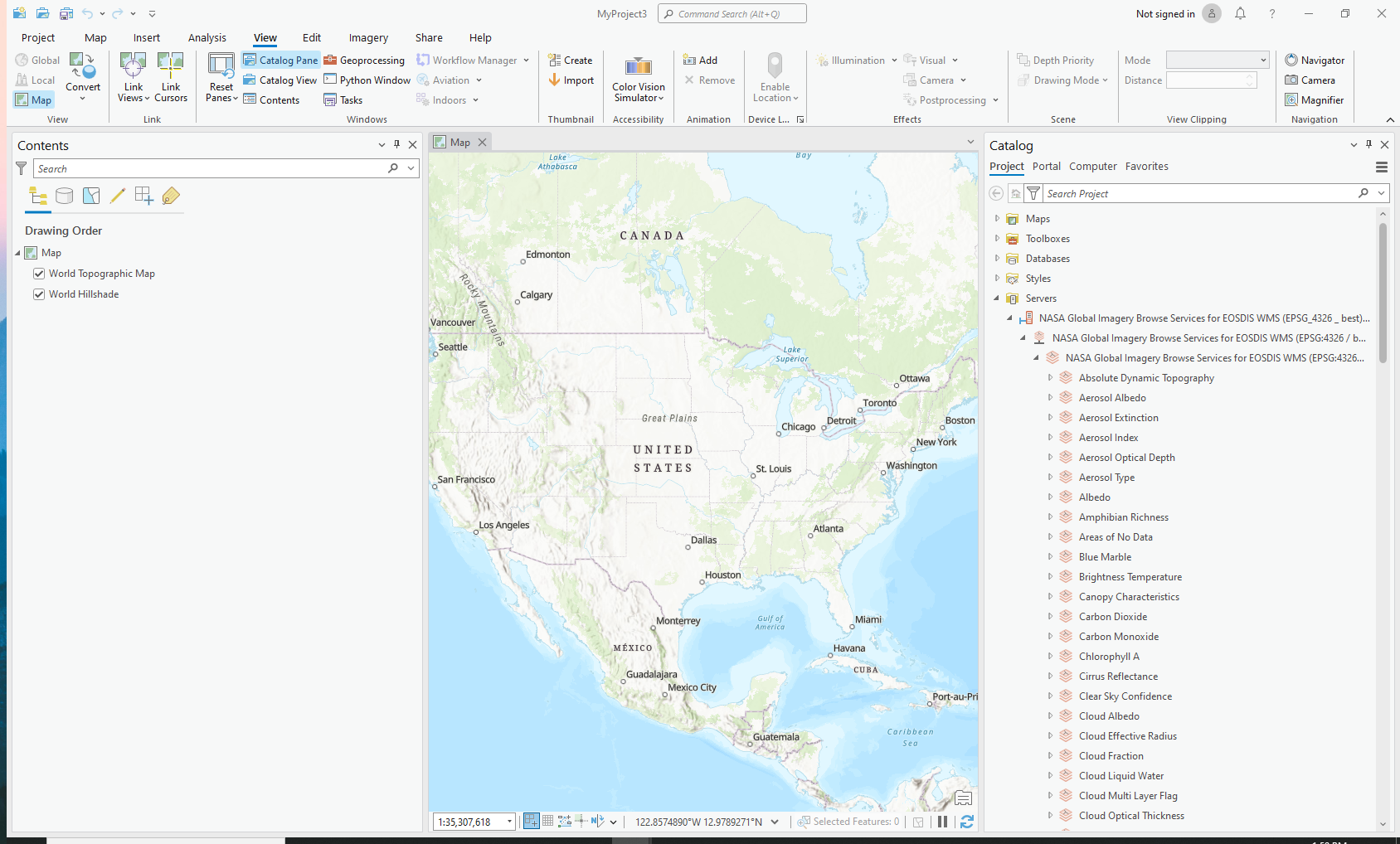
5. Navigate to the content of interest and right click the item, then select “Add to Current Map” to bring it into your map viewer. You can also drag and drop the content into the map.
6. Now you can visualize the imagery as well as control the temporal range available for the data collection. For more information on using GIBS layers in ArcGIS Pro, check out this webpage: Accessing GIBS via GIS Applications
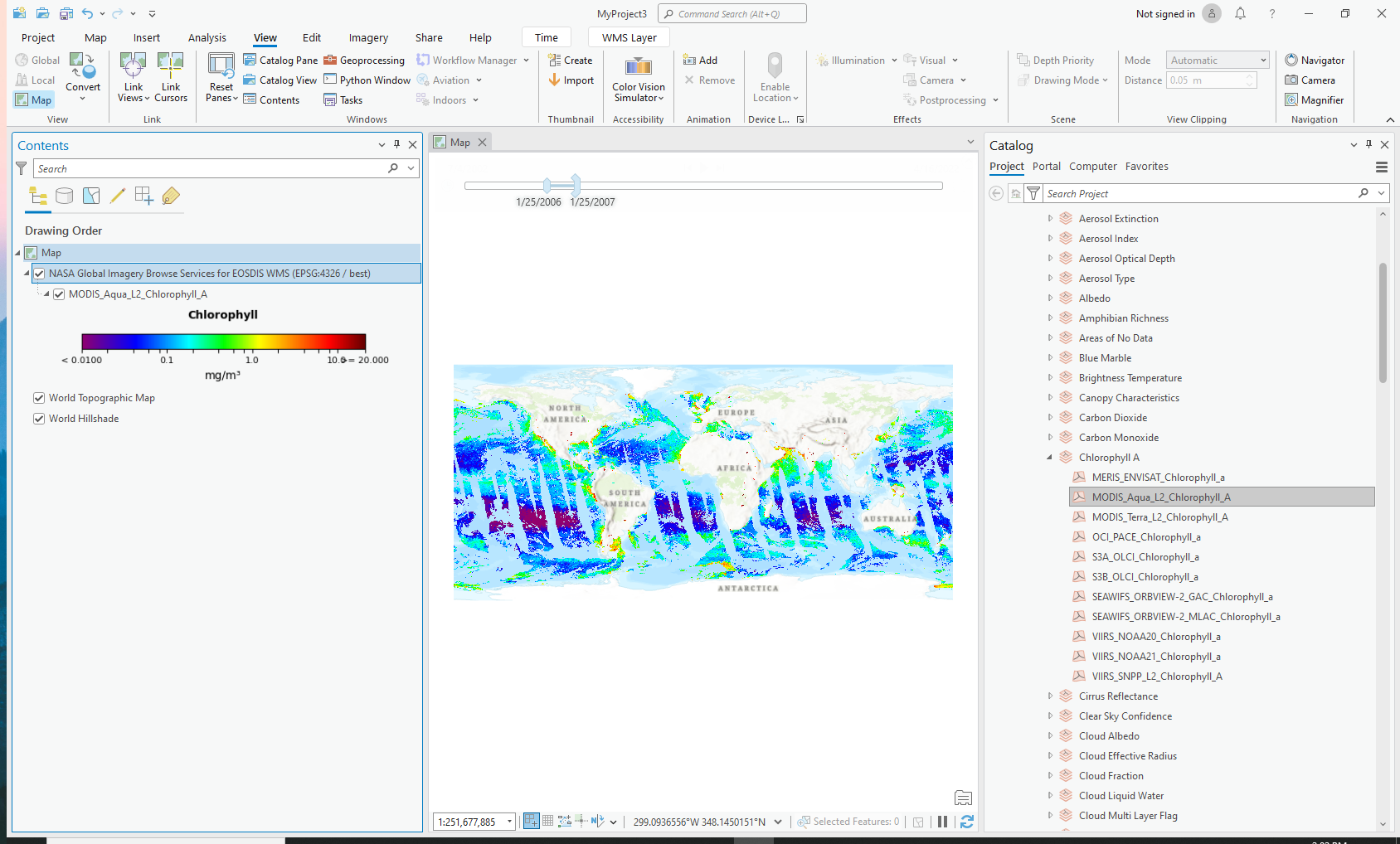
Image services can be easily added for robust visualization and analytical processes using Esri ArcGIS Pro, a commercial off-the-shelf licensed desktop software product.
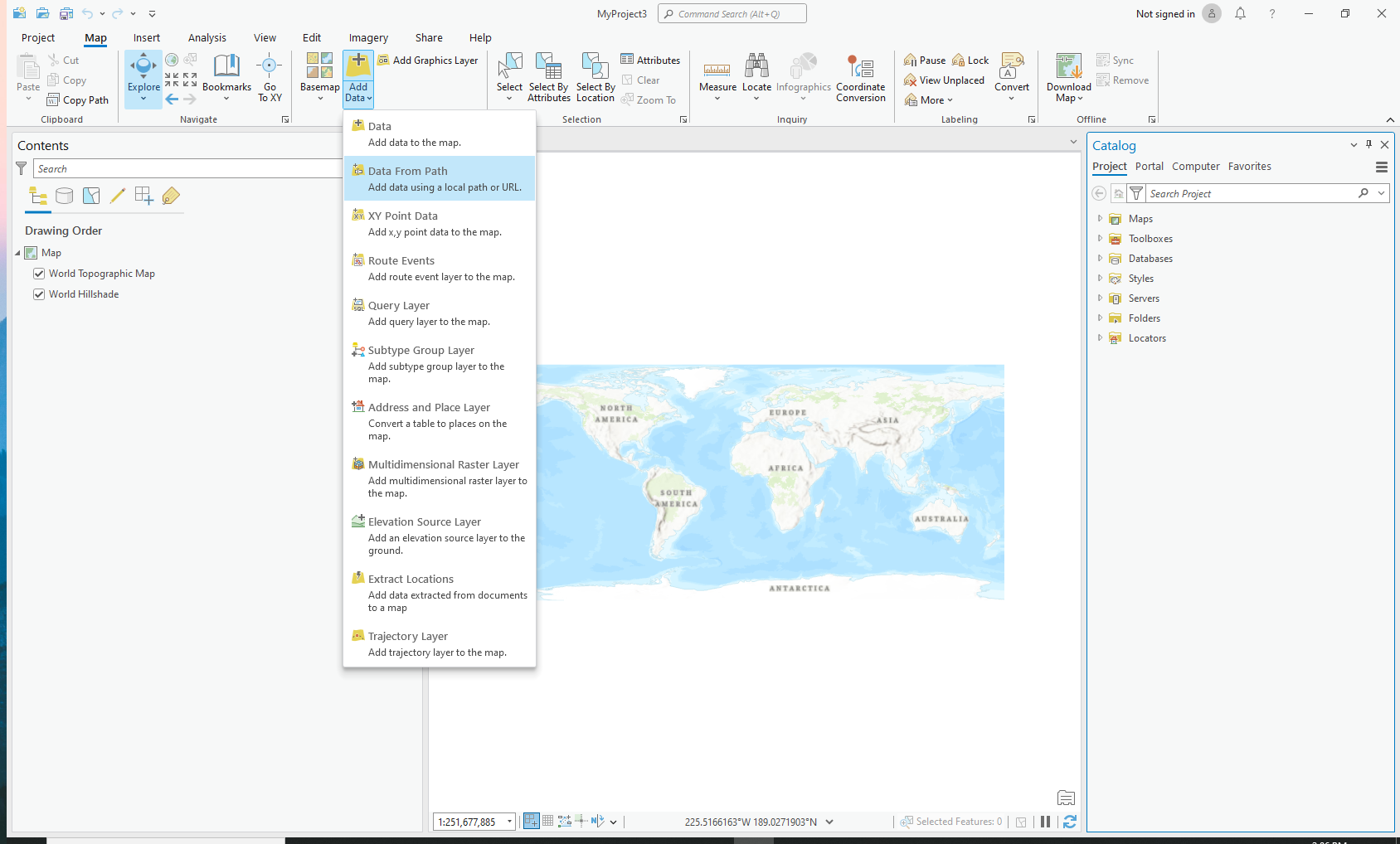
2. Here, you can enter a path. In this example, we use the URL from the SEDAC Gridded Population of the World (GPW) Count Image Service: “https://gis.earthdata.nasa.gov/image/rest/services/gpw-v4/gpw_v4_popula…”
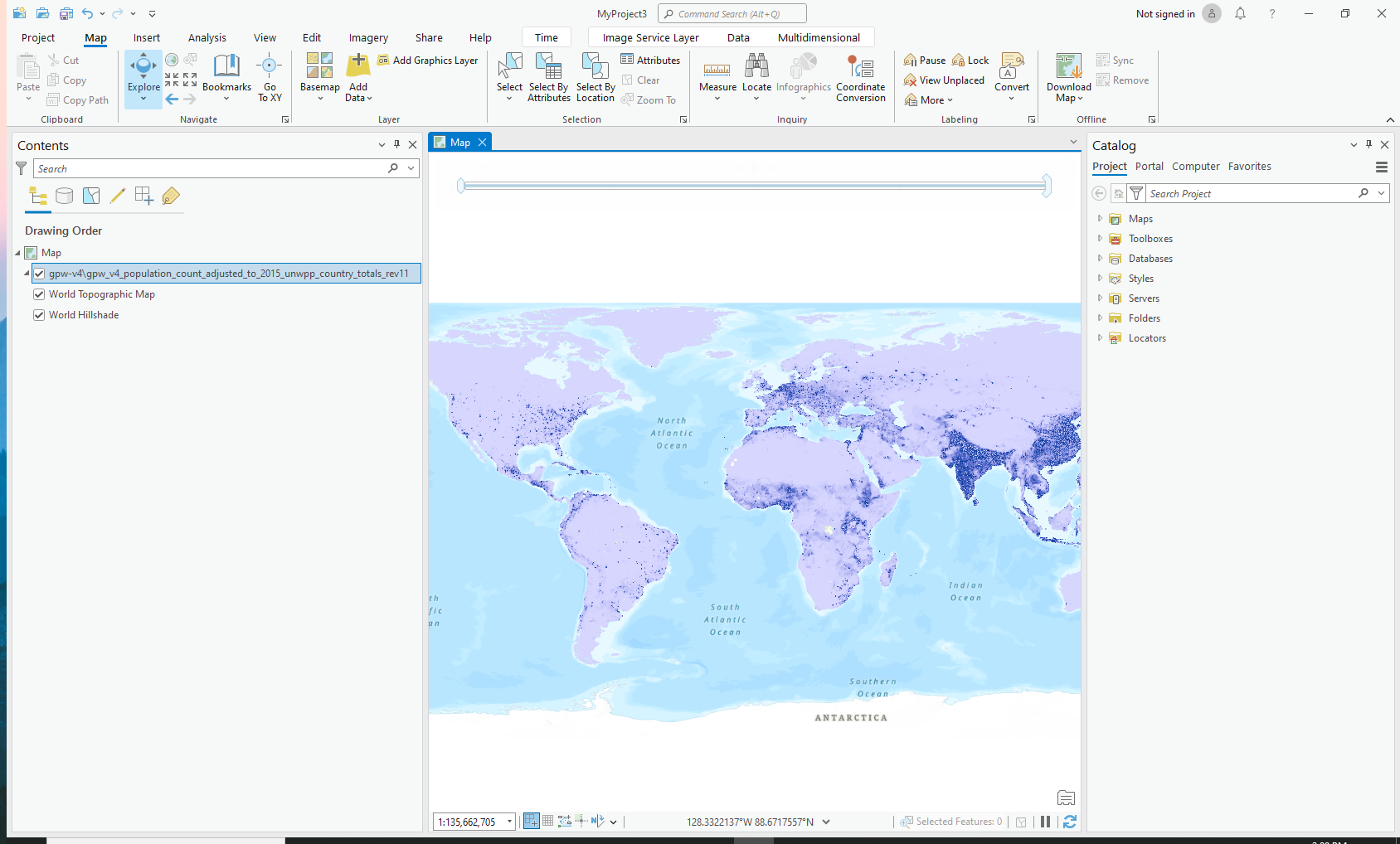
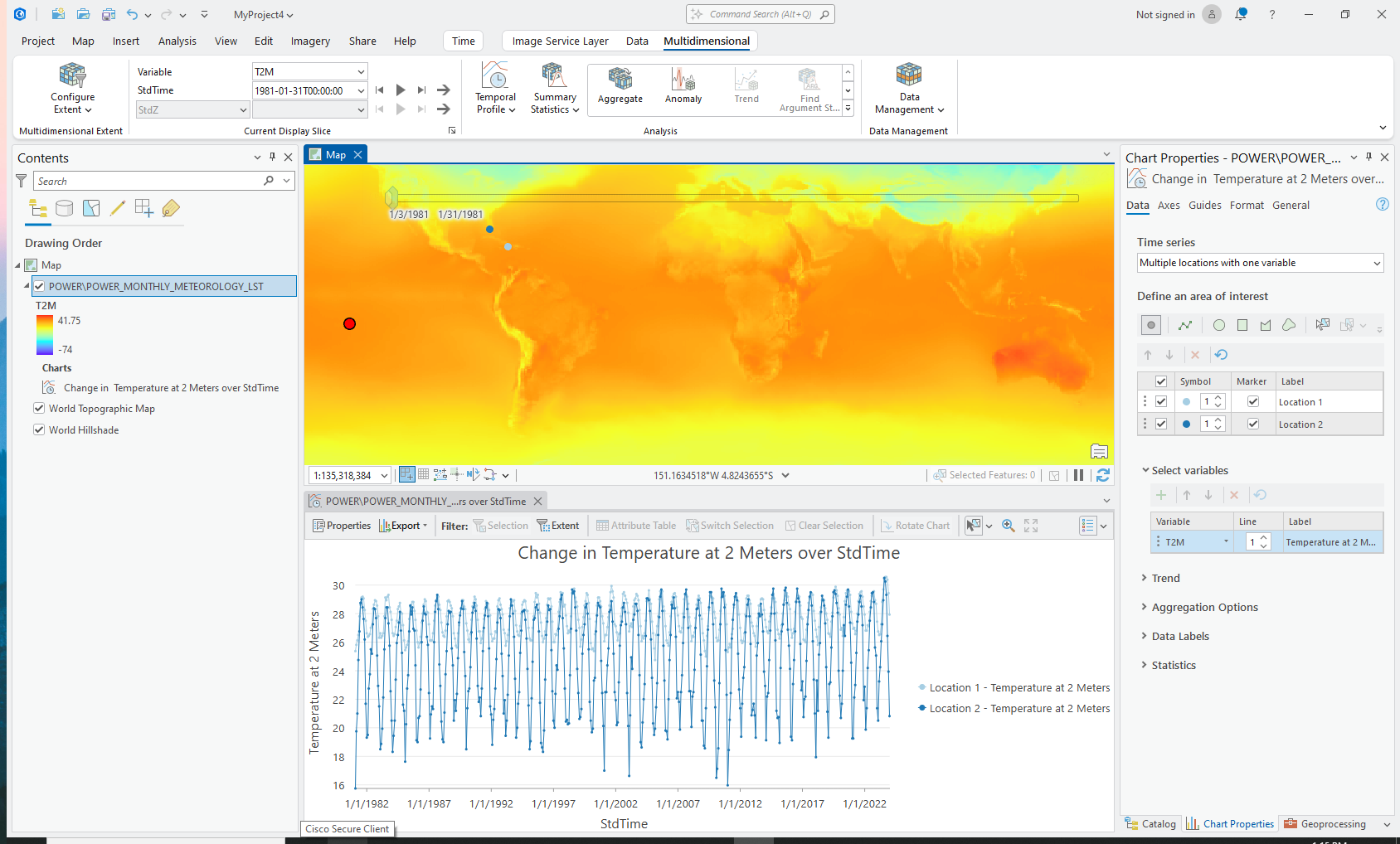
3. Analytics: Image services contain underlying data, and within ArcGIS Pro there are many raster functions and tools available for analysis of these services. For this portion of the tutorial, we will be using meteorology data from the NASA Prediction Of Worldwide Energy Resources (POWER) Project.
4. Below is an example of the POWER Monthly Meteorology layer, which has the URL of “https://gis.earthdata.nasa.gov/image/rest/services/POWER/POWER_MONTHLY_…”
5. To add this ArcGIS Image Service to your map, right click anywhere in your “Catalog” pane, click “New”, then “New Server”, then “New ArcGIS Server”.
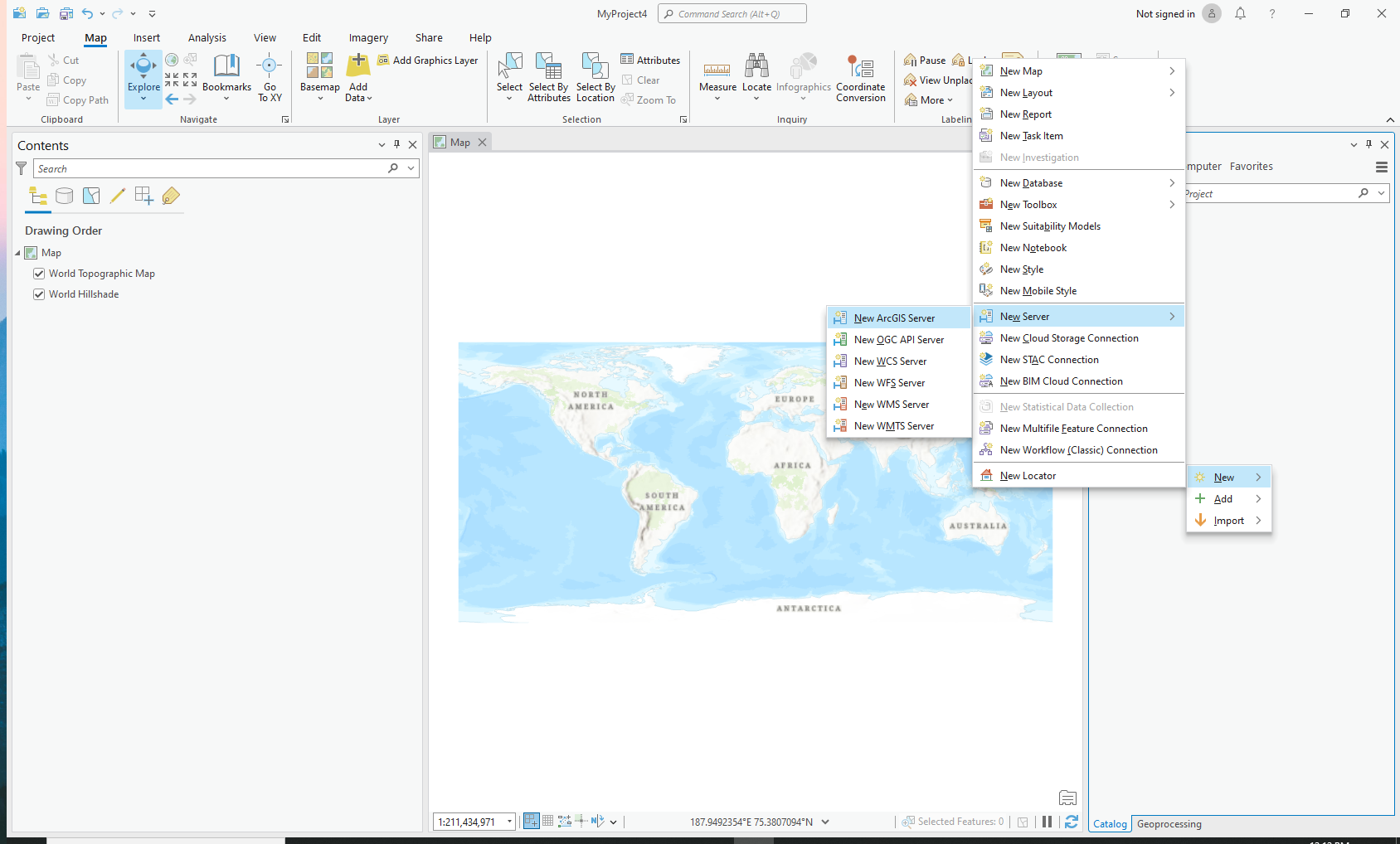
6. Enter the above URL and click “OK” (no authentication is needed – close the “ArcGIS Sign In” pop-up box that may appear after clicking “OK”).
7. In your catalog pane, under “Servers”, locate the WMS server connection that has appeared, and drag and drop the POWER Monthly Meteorology image service onto your map.
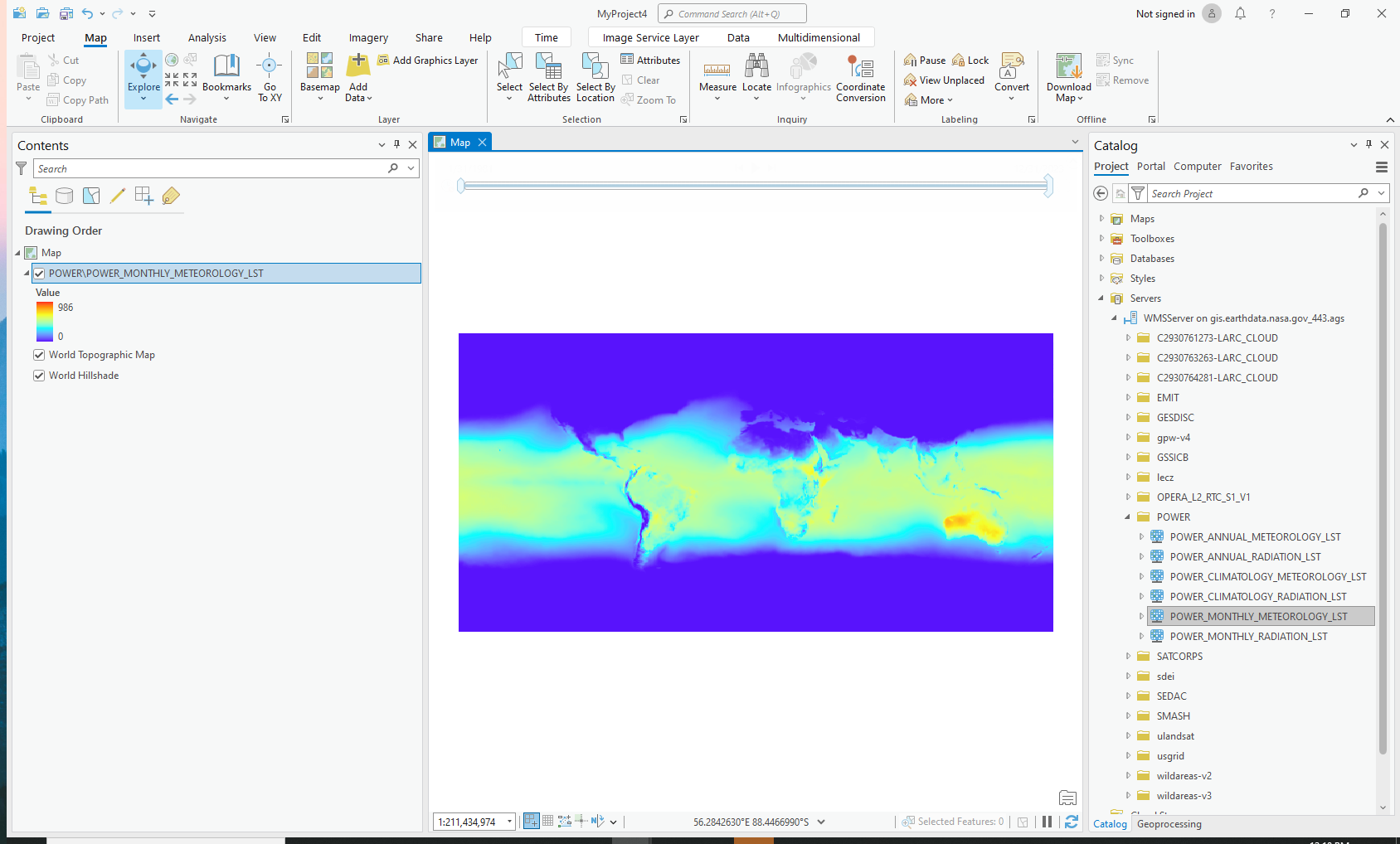
8. Once you have the image service on your map, you can filter down specific multidimensional variables from a given service (if they exist) by using the “Image Service Layer – Multidimensional” Tab. Note: the layer should be selected within the Contents pane for available capabilities to be shown on the task bar. For this example, we will be selecting the 2-meter Temperature parameter/variable (T2M).
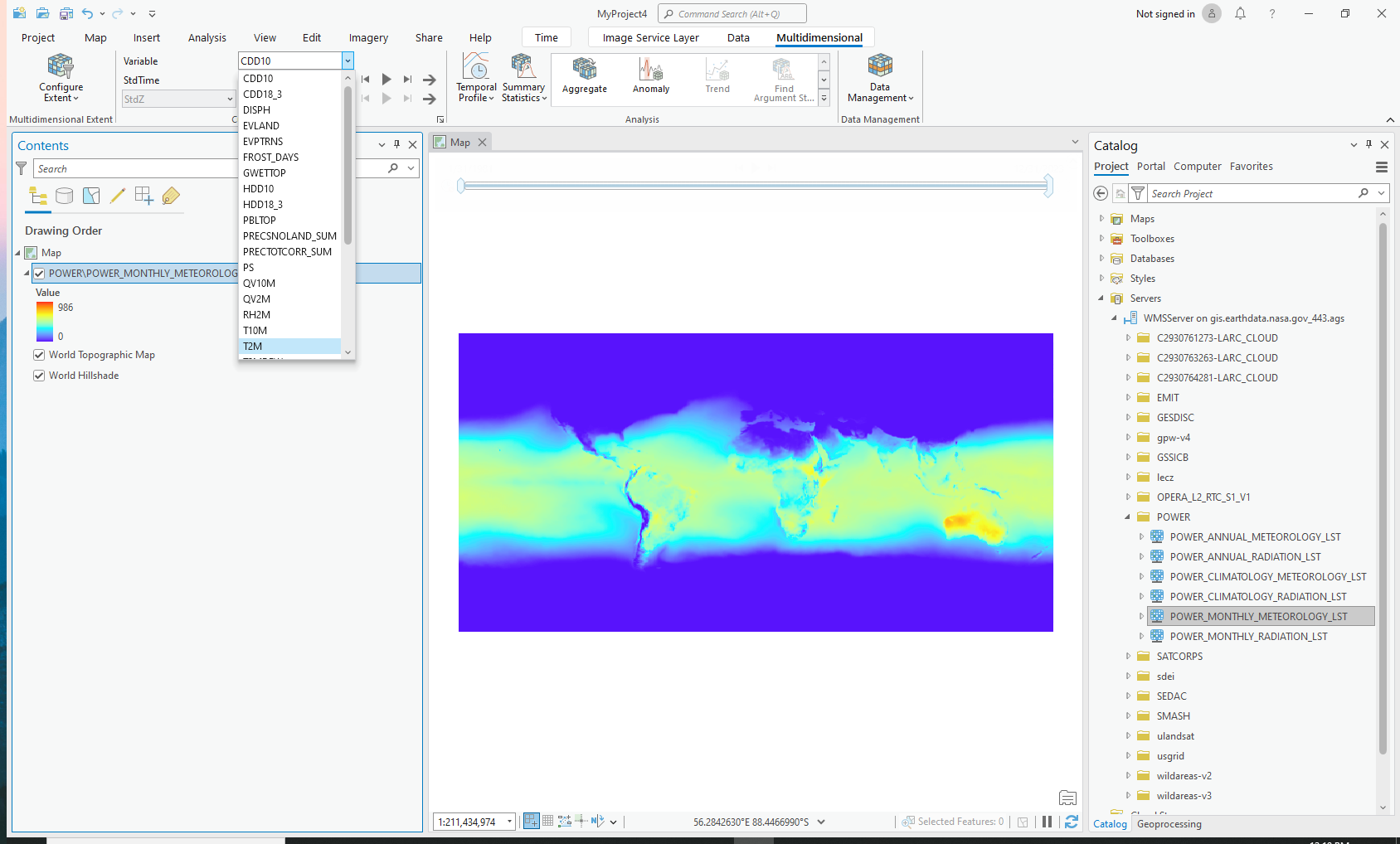
9. You can navigate to the “Time” tab to ensure Time is enabled. Click the very first button in the “Time” tab, “Time”, which is circled in red in the image below. Once enabled, the “Current Time” information should populate, and you’ll be able to use the timeline bar at located at the top of your map to progress the image service through time.
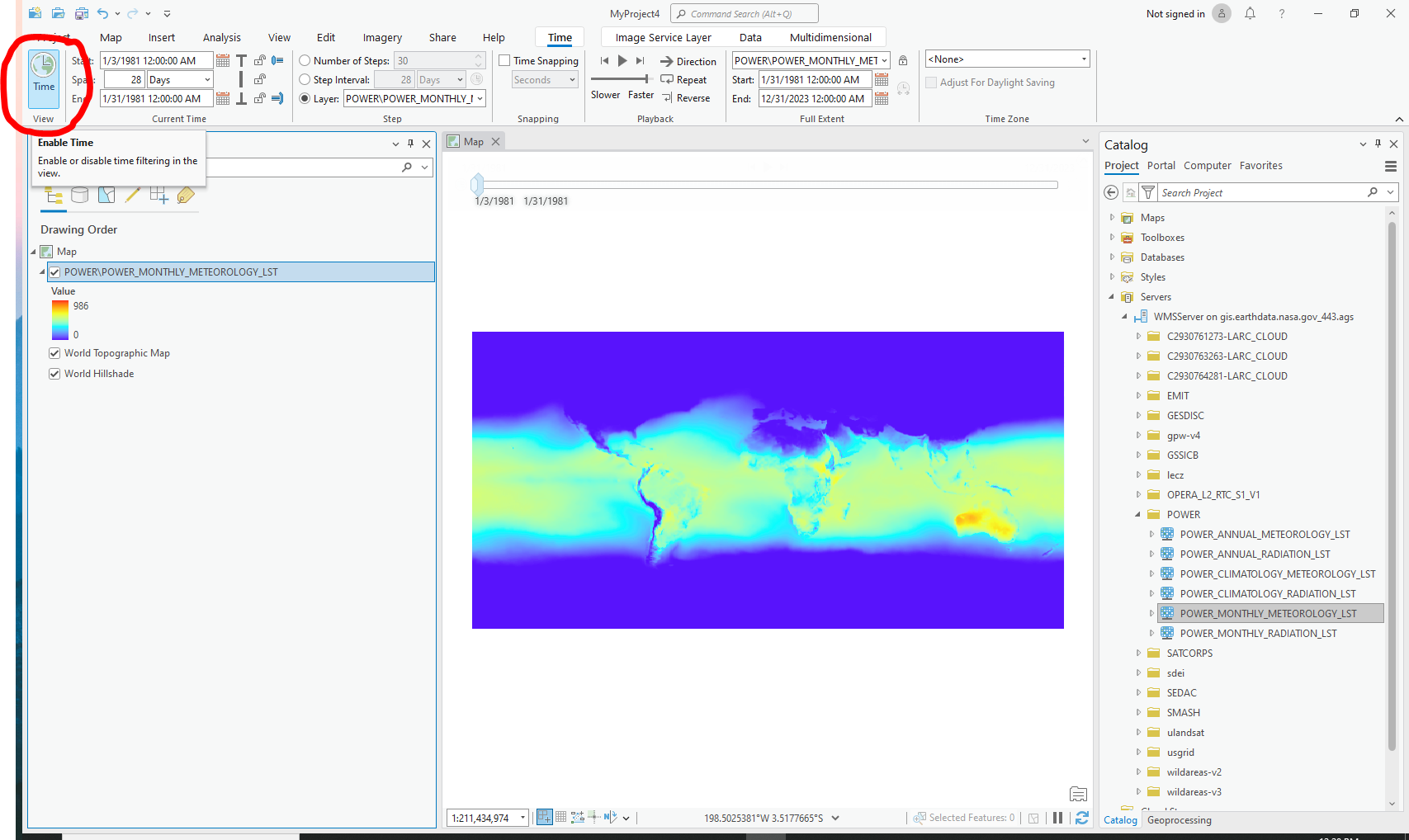
10. The “Multidimensional” portion of the “Image Service Layer” tab contains a plethora of tools to analyze, create subsets, and distill insights. For example, the “Temporal Profile” tool can be used to observe trends: