Delivery of Suomi National Polar-orbiting Partnership (Suomi NPP) satellite data products will cease on November 1, 2026. Data users should transition now to alternative products from NOAA-21 and NOAA-20.
Suomi NPP data announcement
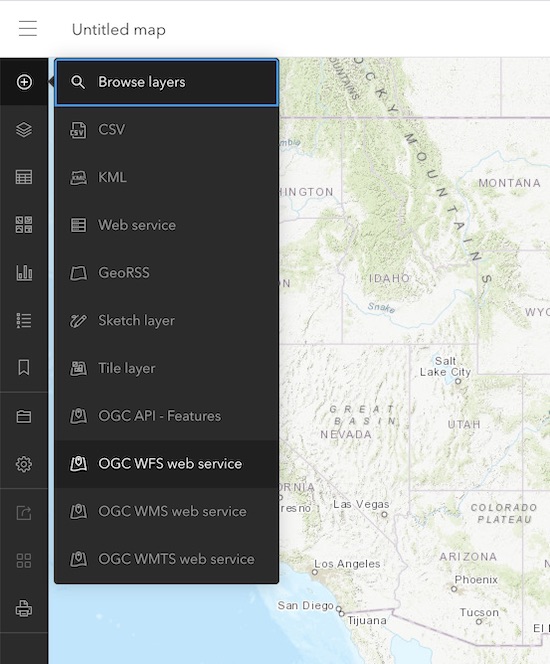
- Launch ArcGIS Online (New Map Viewer).
- Create New Map.
- Click on (+) in the top left corner.
- Select 'OGC WFS web service'.
Image
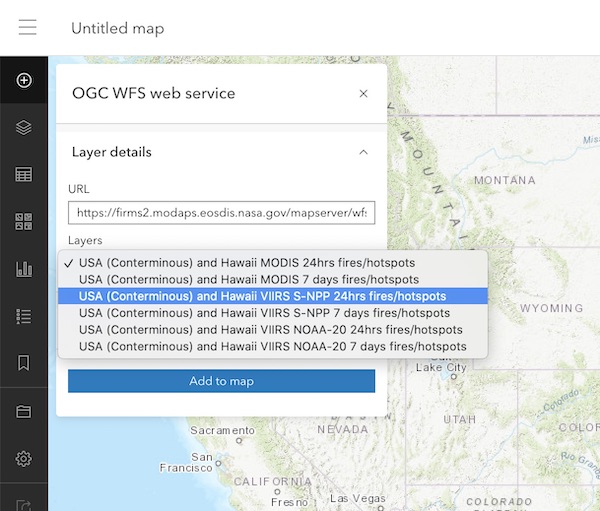
(New Map Viewer) Step 2 - Establish Connection
- For server URL set WFS Connection/URL enter connection string for the desired WFS. For example, for the last 7 day WFS services for the continental US and Hawaii use
https://firms.modaps.eosdis.nasa.gov/mapserver/wfs/USA_contiguous_and_Hawaii/<YOUR_MAP_KEY>/?where<YOUR_MAP_KEY>is the unique code containing both letters and numbers
(make sure/?is included at the end of your WFS URL). - If connection was successful, there will be a list of FIRMS WFS service feature layers.
- Select the layer of interest (ex. NOAA-20 7 days fires).
- Click on 'Add to map'
Image
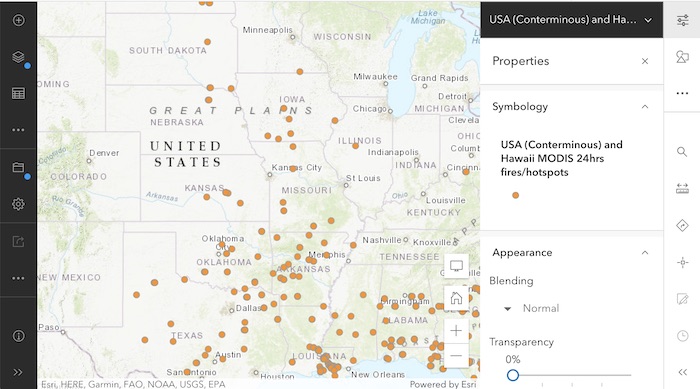
(New Map Viewer) Step 3 - View FIRMS Layer
Image
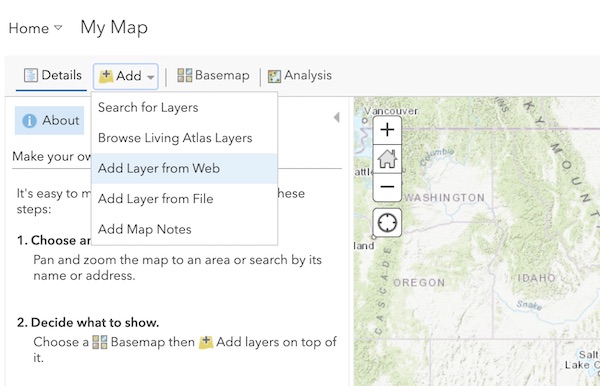
(Map Viewer Classic) Step 1 - Add WFS Service Connection
- Launch ArcGIS Online (Map Viewer Classic).
- Create New Map.
- Click on 'Add' in the top navigation bar.
- Select 'Add Layer from Web'.
Image
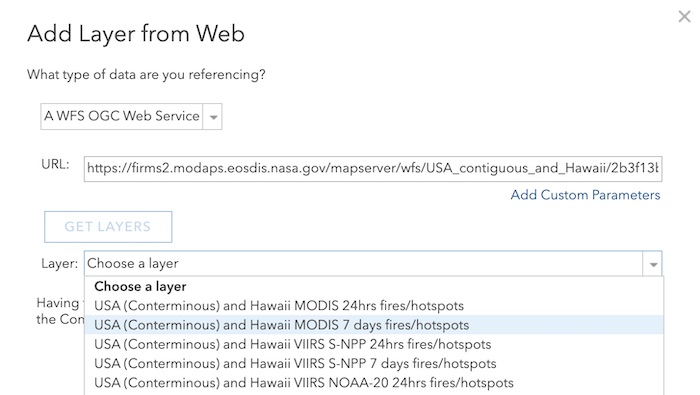
(Map Viewer Classic) Step 2 - Establish Connection
- For server URL set WFS Connection/URL enter connection string for the desired WFS. For example, for the last 7 day WFS services for the continental US and Hawaii use
https://firms.modaps.eosdis.nasa.gov/mapserver/wfs/USA_contiguous_and_Hawaii/<YOUR_MAP_KEY>/?where<YOUR_MAP_KEY>is the unique code containing both letters and numbers- (make sure
/?is included at the end of your WFS URL).
- (make sure
- If connection was successful, there will be a list of FIRMS WFS service feature layers.
- Select the layer of interest (ex. NOAA-20 7 days fires).
- Click on 'Add to map'
Image
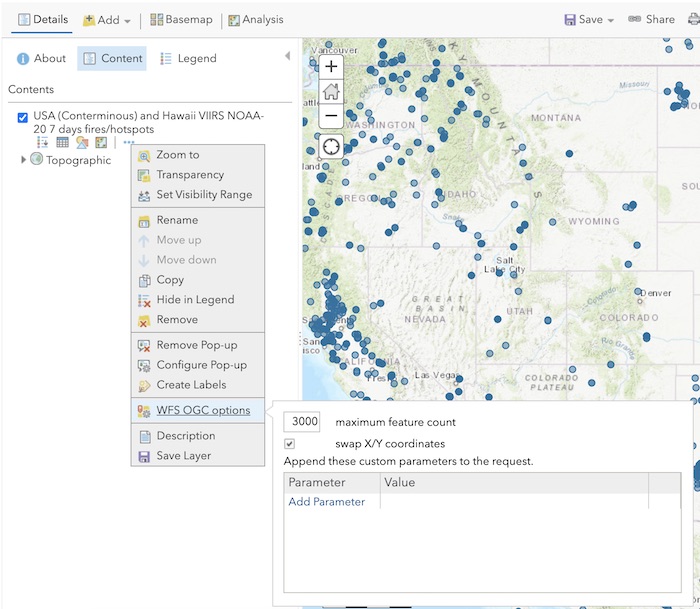
(Map Viewer Classic) Step 3 - View FIRMS Layer
- In 'Content' tab, find your FIRMS layer and click on (...)
- Select 'WFS OGC Options'
- Turn on 'swap X/Y coordinates'
Image
Details
Last Updated
Published
Nov. 20, 2022